xrdp is an Open Source Remote desktop Protocol server, which allows you to RDP to your Linux server from Windows machine; it is capable of accepting connections from rdesktop, freerdp, and remote desktop clients. This how to will help you to setup xrdp server on CentOS 7 / RHEL 7.
Prerequisites
1. This post was written when xrdp is available neither on CentOS repositories nor EPEL repository, after a lot of Google search; I found desktop repository (http://li.nux.ro/) which was having xrdp for CentOS 7 / RHEL 7. We need to manually setup the repository on CentOS 7.2. Don’t forget to install Gnome on CentOS 7
3. Install and configure EPEL repository.
rpm -Uvh https://dl.fedoraproject.org/pub/epel/epel-release-latest-7.noarch.rpm4. Add nux repository.
Automatic (recommended)
rpm -Uvh http://li.nux.ro/download/nux/dextop/el7/x86_64/nux-dextop-release-0-1.el7.nux.noarch.rpmManual
Create a repository file.
vi /etc/yum.repos.d/xrdp.repoPlace the following content. Once added, save and close the file.
[xrdp]
name=xrdp
baseurl=http://li.nux.ro/download/nux/dextop/el7/x86_64/
enabled=1
gpgcheck=0
Install xrdp on CentOS 7
Issue the following command to install xrdpyum -y install xrdp tigervnc-serverYou will get the following output, make sure you are getting the package from the newly created repository.
 --> Running transaction check
---> Package xrdp.x86_64 0:0.6.1-2.el7.nux will be installed
--> Finished Dependency Resolution

Dependencies Resolved

================================================================================
Package        Arch             Version                   Repository      Size
================================================================================
Installing:
xrdp           x86_64           0.6.1-2.el7.nux           xrdp           271 k

Transaction Summary
================================================================================
Install  1 Package

Total download size: 271 k
Installed size: 1.5 M
Is this ok [y/d/N]: y
Downloading packages:
xrdp-0.6.1-2.el7.nux.x86_64.rpm                            | 271 kB   00:05
Running transaction check
Running transaction test
Transaction test succeeded
Running transaction
Installing : xrdp-0.6.1-2.el7.nux.x86_64                                  1/1
Verifying  : xrdp-0.6.1-2.el7.nux.x86_64                                  1/1

Installed:
xrdp.x86_64 0:0.6.1-2.el7.nux
Once it is installed, lets start the xrdp service.
systemctl start xrdp.servicexrdp will listen on 3389, lets confirm this by issuing following command.
# netstat -antup | grep xrdpOutput:
tcp        0      0 0.0.0.0:3389            0.0.0.0:*               LISTEN      1508/xrdp
tcp        0      0 127.0.0.1:3350          0.0.0.0:*               LISTEN      1507/xrdp-sesman
By default, services wont auto start after system reboot. Issue the following command to enable the service at system start up.
systemctl enable xrdp.serviceNext is to create iptables rule to allow RDP connection from the external machines, following command will add the exception for RDP port (3389).
firewall-cmd --permanent --zone=public --add-port=3389/tcp
firewall-cmd --reload
Configure SELinux
# chcon --type=bin_t /usr/sbin/xrdp
# chcon --type=bin_t /usr/sbin/xrdp-sesman
Test Remote Connectivity
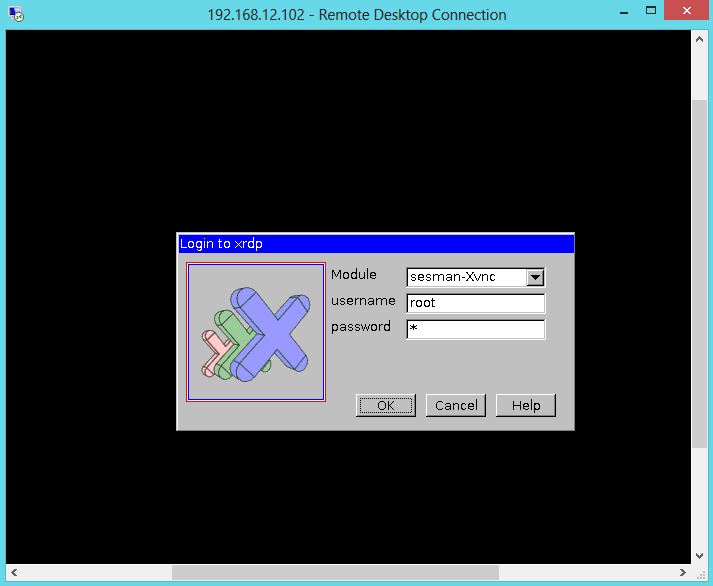
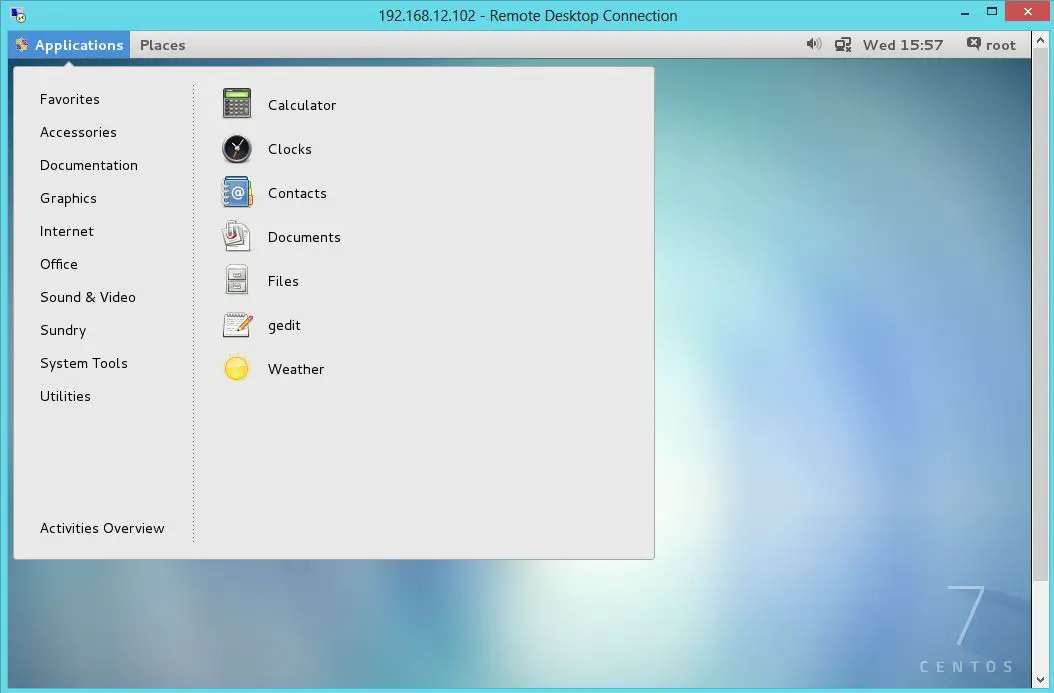
Now take RDP from any windows machine using Remote Desktop
Connection, enter the ip address of Linux server in the computer field
and click on connect.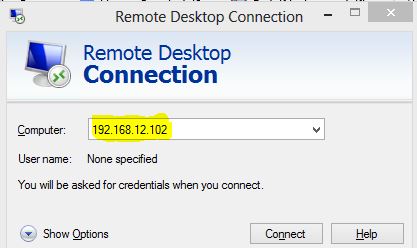

No comments:
Post a Comment